

Intercom Integration
Turn customer conversations into actionable tasks without leaving Intercom.
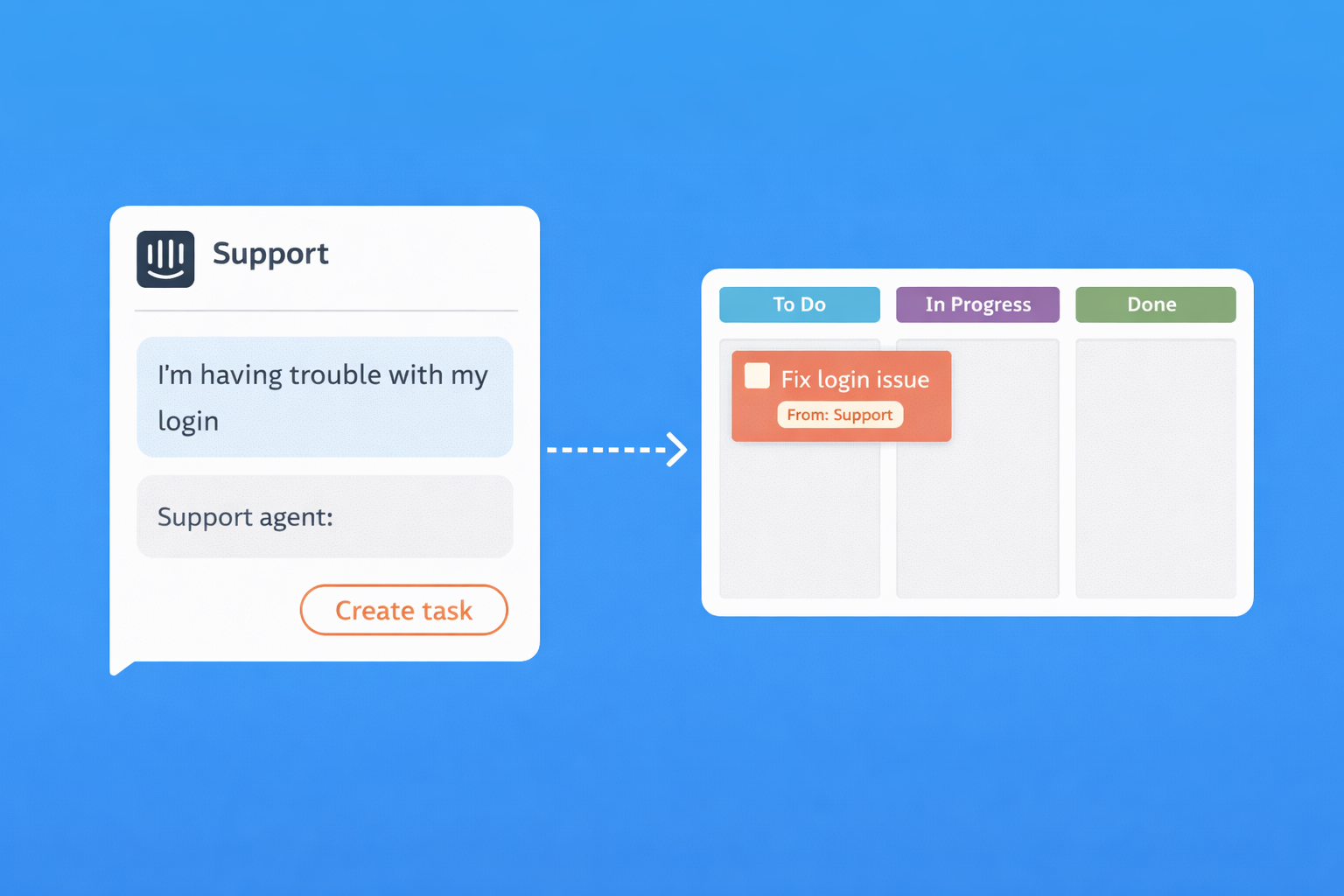
Why Connect Intercom?
Keep support and development perfectly aligned
One-Click Tasks
Create a task directly from any Intercom conversation. No copy-pasting, no context switching.
Full Context
Tasks link back to the original conversation. Your team always has the full story.
Status Updates
When a task is completed, your support team knows. Close the loop with customers faster.
How It Works
Set up in minutes, use forever
Connect Your Workspace
Go to Settings in Task Board and connect your Intercom workspace with one click.
Map Your Inboxes
Choose which Intercom inboxes map to which Task Board boards.
Create Tasks from Conversations
Use the "Create Task" button in Intercom to instantly create a linked task.
Track and Resolve
Work on the task in Task Board. When it's done, your support team is notified.
Perfect For
Common ways teams use this integration
Bug Reports
Customer reports a bug? Create a task for your dev team instantly, with the full conversation attached.
Feature Requests
Capture feature requests from customers and track them on your product board.
Technical Escalations
Need engineering help? Create a task with all the context your team needs to resolve it.
Follow-up Tasks
Create tasks for things you promise customers - never let anything fall through the cracks.
Frequently Asked Questions
Common questions about the Intercom integration
What Intercom plan do I need?
The Task Board integration works with all Intercom plans that support custom actions or the app store. Check your Intercom plan details to confirm you have access to install apps from the Intercom App Store.
Can I create tasks from any Intercom conversation?
Yes, once connected, you can create tasks from any conversation in your mapped inboxes. The "Create Task" button appears in the conversation sidebar, letting any team member quickly turn a customer issue into a tracked task.
What information is included in the created task?
When you create a task from Intercom, it includes a link back to the original conversation, the customer's name and email, and any text you add when creating the task. This gives your team full context without having to search for the original conversation.
How do I know when a task is completed?
When a task created from Intercom is moved to your "Done" column, your support team can see the status update. This helps them follow up with customers to let them know their issue has been resolved.
Can I disconnect Intercom later?
Yes, you can disconnect the Intercom integration at any time from your Task Board settings. Tasks that were created from Intercom will remain in Task Board, but the ability to create new tasks from conversations will be disabled until you reconnect.
Is there an extra cost for the Intercom integration?
No, the Intercom integration is included with all Task Board plans at no extra cost. You may have costs on the Intercom side depending on your Intercom subscription, but Task Board doesn't charge extra for this integration.
Ready to Connect?
Create a Task Board account, then connect Intercom in Settings.
Start Free View on Intercom App Store