
Time Tracking
Track time on tasks with timers or manual entries
Time Tracking in Task Board
Task Board has built-in time tracking so you don't need a separate tool. Track time with the automatic timer or add entries manually. This is one of the key features that sets us apart from Trello.
Using the Timer
The timer is the easiest way to track time. It runs in the background while you work.
Starting a Timer
- Open any task by clicking on it
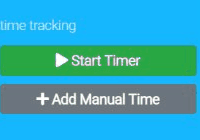
- Click the "Start Timer" button in the task detail panel
- A floating timer will appear in the corner of your screen
- Work on your task - the timer runs automatically
Stopping a Timer
- Click the floating timer widget, or open the task
- Click "Stop Timer"
- Add a description of what you worked on (optional)
- The time entry is saved automatically

Floating timer widget
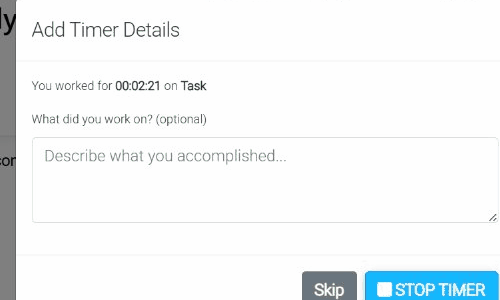
Add a description when stopping
Adding Time Manually
Forgot to start the timer? No problem. You can add time entries manually.
- Open the task you worked on
- Go to the "Time" tab
- Click "Add Time Entry"
- Enter the date, start time, and end time (or duration)
- Add a description (optional)
- Click "Save"
Viewing Time Entries
See all time tracked on a task, or view time across your entire board.
On a Task
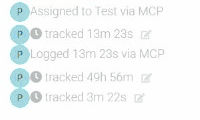
Open any task and click the "Time" tab to see all time entries for that specific task.
On a Board
Click "Reports" in the board menu to see time tracked across all tasks on the board.
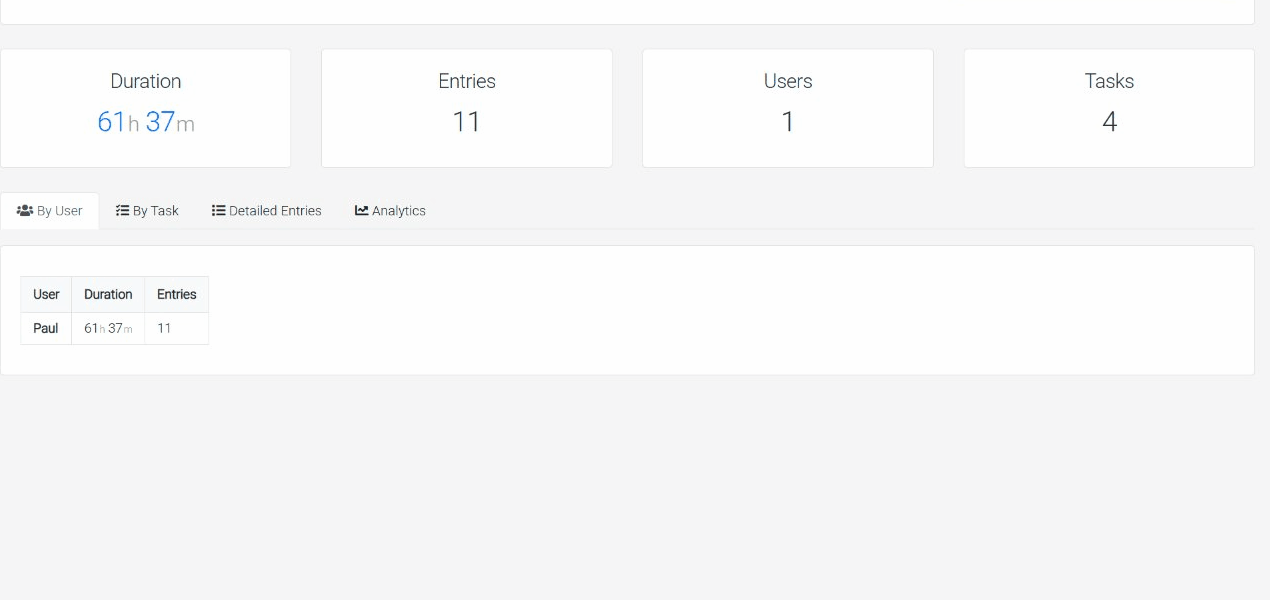
Time Report showing entries across all tasks
Editing & Deleting Entries
Made a mistake? You can edit or delete your time entries.
- Open the task and go to the "Time" tab
- Find the entry you want to change
- Click the edit icon to modify the entry
- Click the delete icon to remove it entirely
Pro Tips
- The floating timer stays visible even when you switch between tasks or boards
- Timer continues running if you close the browser - just sign back in to stop it
- Add descriptions to your time entries for more detailed reporting
- Use the Reports feature to export time data for invoicing
Frequently Asked Questions
What happens if I close my browser while a timer is running?
The timer continues running on our servers. When you log back in, you'll see the timer still running with the correct elapsed time. Simply stop it when you're done and the time will be logged accurately.
Can I run multiple timers at once?
You can only have one timer running at a time. Starting a timer on a new task will prompt you to stop the current one first. This ensures accurate time tracking without overlapping entries.
How do I track time for meetings or calls?
Create a task for the meeting or call, then either start the timer when the meeting begins, or add a manual time entry afterward with the meeting duration. Adding a description helps you remember what was discussed.
Can clients see my time entries?
By default, guests (clients) cannot see time entries on tasks. They can see task progress and leave comments, but time tracking data is only visible to team members with full access.
Is there a limit to how much time I can track?
No, there's no limit on time entries. Track as much time as you need across all your tasks and boards. Time tracking is included on both the free Solo plan and the Team plan.
Need help?
Contact us at help@task-board.io - we typically respond within a few hours.